
USB-C names the connector shape, a 24-pin reversible plug, and nothing more. It does not promise a specific data speed or charging wattage on its own. To know what a cable or port actually does, you need to check the printed markings, the manufacturer specs, and, for higher power or speed, the E-marker chip inside the cable.
TL;DR:
- USB-C only defines the connector shape, while data speed and power capacity depend on cables, devices, and E-marker chips inside the cables.
- Certified USB-C cables and ports clearly specify their supported wattage and data speeds, which must match for optimal performance.
- USB specification names, like USB 5Gbps or 10Gbps, directly reflect actual transfer speeds, and legacy version labels can be misleading.
- Higher power delivery tiers (60W, 100W, 240W) require E-marker chips; unmarked cables are usually limited to basic charging and lower wattages.
- Thunderbolt ports and cables offer higher guaranteed bandwidth and features like daisy chaining, distinguished by official logos separate from generic USB-C labels.
Table of Contents
- What the USB-C Connector Actually Is
- Decoding USB Marketing Names and Real Speeds
- Power Ratings, E-Markers, and Safe Charging
- How to Identify What Your Port or Cable Supports
- USB-C vs Thunderbolt: When the Difference Matters
- Certification and the Push Toward One Charging Standard
- Why This Still Trips People Up
- FAQ
- Sources
- Where to Verify These Standards Yourself
What the USB-C Connector Actually Is
The confusion starts with a simple mismatch: people treat “USB-C” as if it describes performance, when it only describes shape. USB-C was standardized in 2014 as a 24-pin reversible connector, built to replace the older, direction-sensitive Type-A and Type-B plugs that had frustrated users for two decades. You could plug it in upside down, right side up, it worked either way, and that alone made it a usability win long before anyone talked about data rates.
Inside that 24-pin layout, different pin groups handle different jobs:
- Power and ground pairs carry electrical current between charger and device.
- SuperSpeed pairs (multiple lanes) handle high-speed data transfer.
- CC pins (Configuration Channel) negotiate power levels, detect cable orientation, and identify E-marker data.
- SBU pins (Sideband Use) support alternate modes like video output.
A single physical connector can wire up these pin groups in very different ways depending on what the cable or device behind it was built to support. One USB-C cable might only carry power and basic USB 2.0 data, while another, identical-looking cable carries full SuperSpeed data, video, and 100 watts of power. That’s the root of the confusion: the plug tells you nothing about which combination you’re holding. The shape is the standard. The capability is a separate conversation entirely, one that depends on what the cable, the port, and the device all agree to support.
Decoding USB Marketing Names and Real Speeds
USB naming has gone through several rebrands, and old labels still show up on product boxes next to newer ones. The USB-IF marketing name guidance introduced simplified names meant to replace the old version-number soup, though both systems circulate in stores today.
Here’s how the current marketing names line up with the legacy version names you might still see:
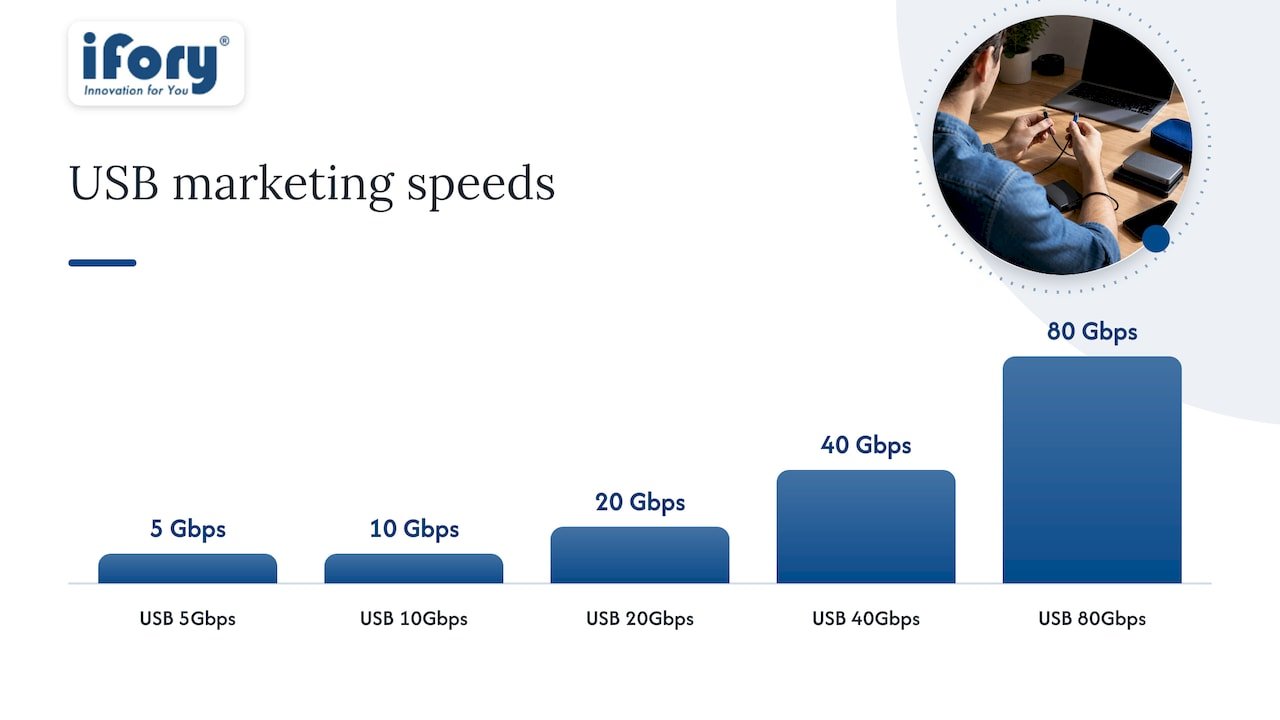
- USB 5Gbps replaces USB 3.0, USB 3.1 Gen 1, and USB 3.2 Gen 1, all the same 5 Gbps speed under three different old names.
- USB 10Gbps replaces USB 3.1 Gen 2 and USB 3.2 Gen 2.
- USB 20Gbps replaces USB 3.2 Gen 2×2.
- USB 40Gbps corresponds to USB4 at its standard tier.
- USB 80Gbps is the newest USB4 tier, aimed at high-bandwidth displays and storage.
A cable or port rated for a given speed only delivers it when every link in the chain matches. The USB-IF marketing guidance ties these names to certified products specifically so a shopper can match labels across a host, a cable, and a device without needing to decode version numbers.
That “every link” detail matters more than most shoppers realize. Plugging a USB 40Gbps cable into a USB 5Gbps port gets you 5 Gbps, full stop. The cable doesn’t upgrade the port, and the port doesn’t upgrade the cable. Industry guides covering legacy naming confirm that old labels like “USB 3.1 Gen 1” and “USB 3.2” frequently describe the identical 5 Gbps speed, which is exactly why USB-IF pushed for the simpler Gbps-based names in the first place. When you’re shopping, look for the Gbps number directly. If a listing only shows a version number like “3.2 Gen 1,” treat it as 5 Gbps unless stated otherwise.
Power Ratings, E-Markers, and Safe Charging
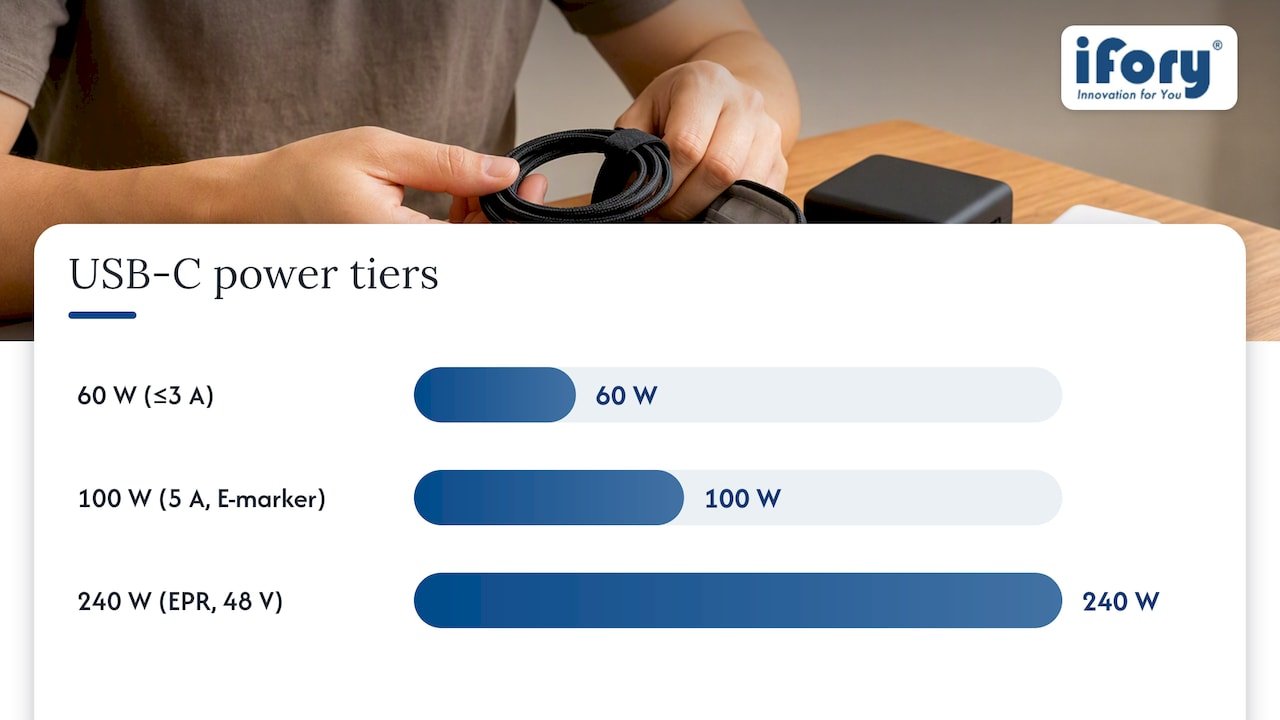
USB-C power delivery comes in three common tiers, and knowing which one a cable supports matters just as much as knowing its data speed.
60W cables carry up to 3 amps at 20 volts and commonly ship without an E-marker chip, since they fall under the current threshold that requires one. 100W cables step up to 5 amps and do require an E-marker, since USB-C cables rated above 3A must electronically report their capability. 240W cables use Extended Power Range (EPR) under USB PD 3.1, pushing voltage up to 48 volts, and always require an E-marker plus stricter insulation to handle that load safely.
The E-marker chip itself lives inside the cable and communicates over the CC pins. According to USB-IF’s E-marker testing documentation, it reports the cable’s maximum current and its support for USB Power Delivery and EPR, which lets a charger and device negotiate the correct power level before any current flows. Without that negotiation, a device has no reliable way to confirm a cable can handle more than the base-level current safely.
Pro Tip: Check the cable itself for a printed wattage and look for the USB-IF certified logo. If you can’t find either, assume the cable is limited to basic charging only.
A few practical shopping habits go a long way here:
- Match the cable’s rated wattage to your device’s charging needs, not the other way around.
- Avoid cables with vague claims like “fast charging” that list no wattage or amperage.
- Prefer certified cables for laptops and high-drain devices, since uncertified cables often skip E-marker testing entirely to cut costs.
That last point is a real pattern worth internalizing. Certification and E-marker chips add manufacturing cost, so budget cables marketed purely on price frequently leave them out. An unmarked cable sold for a dollar or two is a reasonable bet for charging earbuds. It’s a poor bet for charging a laptop that expects 100W.
How to Identify What Your Port or Cable Supports
Rather than guessing, you can verify a port or cable’s real capability in a few minutes using markings and documentation.
- Look for printed symbols near the port, including a lightning-bolt-shaped Thunderbolt logo, or text like “10Gbps” or “40Gbps” stamped directly on the device.
- Check the cable’s molded label or connector housing for a wattage figure (60W, 100W, 240W) or a USB-IF certified logo.
- Pull up the device’s official spec sheet rather than relying on box art, since manufacturers often list exact data and power figures in the technical specifications section but not on the retail packaging.
- Cross-reference with the USB-IF integrators list when you need certainty for a specific cable or charger model, since certified products are registered there by brand and model.
- Combine all three checks (port marking, cable E-marker rating, and device spec) before relying on a setup for high-power charging or high-bandwidth data transfer.
This layered approach matters because any single data point can mislead you. A port might support 40Gbps internally, but if the cable connecting it is a basic 5Gbps cable, you’re capped at the cable’s limit regardless of what the port is capable of.
USB-C vs Thunderbolt: When the Difference Matters
Thunderbolt looks like USB-C, uses the same 24-pin connector, and often confuses shoppers into thinking it’s just another USB-C variant. It isn’t. Thunderbolt is a separate, licensed protocol that happens to share the USB-C connector shape starting with Thunderbolt 3, but it requires its own certification process and testing standards that go beyond what standard USB-C requires.
That extra certification translates into real, verifiable differences:
- Higher guaranteed bandwidth, since Thunderbolt ports are tested to stricter throughput standards than base USB-C.
- Daisy-chaining support, letting you connect multiple Thunderbolt displays or docks through a single port.
- Alternate mode support for DisplayPort and PCIe, which lets a single USB-C or Thunderbolt cable carry video signals or direct PCIe data alongside standard USB traffic.
Alternate modes are worth understanding on their own, since they explain how one small connector does so much. When a port advertises DisplayPort Alt Mode, it’s repurposing some of those SuperSpeed pin pairs to carry native video signals instead of USB data, which is how a USB-C cable can drive an external monitor directly. PCIe alternate mode works similarly, giving external graphics docks and high-speed storage enclosures a direct line to a laptop’s internal bus.
If your use case involves driving multiple 4K displays, connecting an external GPU enclosure, or moving large video files at the fastest speeds available, look specifically for the Thunderbolt logo on both the port and the cable. Because Thunderbolt certification is stricter and separately licensed, that bolt symbol is a dependable signal of higher performance in a way that a generic USB-C label simply isn’t.
Certification and the Push Toward One Charging Standard
Two forces are steadily reducing USB-C naming chaos: USB-IF’s own certification program and European Union policy.
USB-IF’s EU conformity program gives manufacturers a defined testing and registration path to meet EU interoperability requirements, tying directly into the bloc’s Common Charger Initiative. The European Commission’s rules are accelerating manufacturer alignment with USB-IF standards, which over time should mean more devices on shelves carry standardized logos and clear power and speed markings rather than vague marketing claims.
On the certification side, USB-IF’s logo usage guidelines restrict official trademarks like “USB Type-C®” to products that have actually passed certification testing. That means a cable or charger carrying the real USB-IF logo has been through a verification process, not just a marketing decision by the manufacturer.
A few ways to put this to use when buying:
- Look for the official USB-IF logo, not just the word “certified” printed loosely on packaging.
- Treat EU-market labeling improvements as a long-term trend, not an instant fix, since older stock and uncertified imports still circulate.
- Favor devices and cables from brands that list certification status explicitly in their specs rather than burying it in fine print.
Why This Still Trips People Up
Clear naming isn’t a minor convenience. It affects whether your laptop actually charges at full speed, whether your external drive runs at the speed you paid for, and whether a cheap cable quietly limits a device you spent real money on. The industry’s own history of overlapping names like USB 3.1 Gen 1 and USB 3.2 didn’t help, and most people reasonably assumed a bigger version number meant a faster cable. It often didn’t.
My practical take: treat every USB-C cable as unrated until proven otherwise by a label, a spec sheet, or an E-marker check. Keep at least one cable you know is rated for high wattage and high speed separate from the drawer of random charging cables everyone accumulates. If you travel or work outdoors where you can’t easily test a device, pack cables with printed wattage ratings rather than unmarked ones picked up in a hurry.
— Mats
FAQ
Why is USB-C called that?
The “C” simply distinguishes this connector’s shape from the earlier Type-A and Type-B connectors, referring to the physical 24-pin reversible design standardized in 2014, not to any particular data speed or power level. The letter is about form factor, not performance.
How do I identify different USB-C cables?
Check the cable housing for printed wattage figures like 60W or 100W and look for the official USB-IF certified logo, which confirms the cable passed testing. For data speed, look for explicit labeling such as “10Gbps” or “40Gbps” rather than relying on version numbers alone.
What does the “C” in USB-C stand for?
The “C” refers to the connector’s shape designation in the USB naming sequence that followed Type-A and Type-B, not an acronym. It identifies the 24-pin reversible plug itself, independent of the protocol or power running through it.
How do I tell which USB-C port I have?
Look for symbols printed directly next to the port, such as a Thunderbolt bolt icon or text indicating a specific Gbps rating, and cross-check against the device’s official spec sheet. When no markings are visible, the manufacturer’s published specifications are the most reliable source for a port’s real capability.
Does a higher-wattage charger damage a lower-power device?
No, USB Power Delivery negotiation means a device only draws the power it requests, so a 100W charger connected to a device that only needs 20W simply delivers 20W. The negotiation happens over the CC pins before any higher current flows, which is part of what E-marker testing verifies in certified cables.
Sources
Where to Verify These Standards Yourself
For the technical specifics behind connector design and naming, the USB-C Wikipedia entry is a solid starting point. For official marketing names and speed tiers, consult USB-IF’s integrators list guidance directly. Anyone buying cables for high-power laptops or EPR charging should check E-marker testing requirements, and EU shoppers tracking common charger compliance can review the European Commission’s policy page.
If you’re matching a power bank or solar panel to the right USB-C cable for outdoor charging, our Ifory Powerbank and compatible PD 40W solar panel are built around 100W fast charging, so pairing them with a properly E-marked, certified cable gets you the full charging speed they’re designed to deliver, even off-grid. Anyone curious about connector and bandwidth tradeoffs in other hardware categories might also find this comparison of DDR4 and DDR5 memory channels useful background, and this breakdown of LiPo battery connector types makes a similar point: a connector’s shape never guarantees what it can actually carry.