
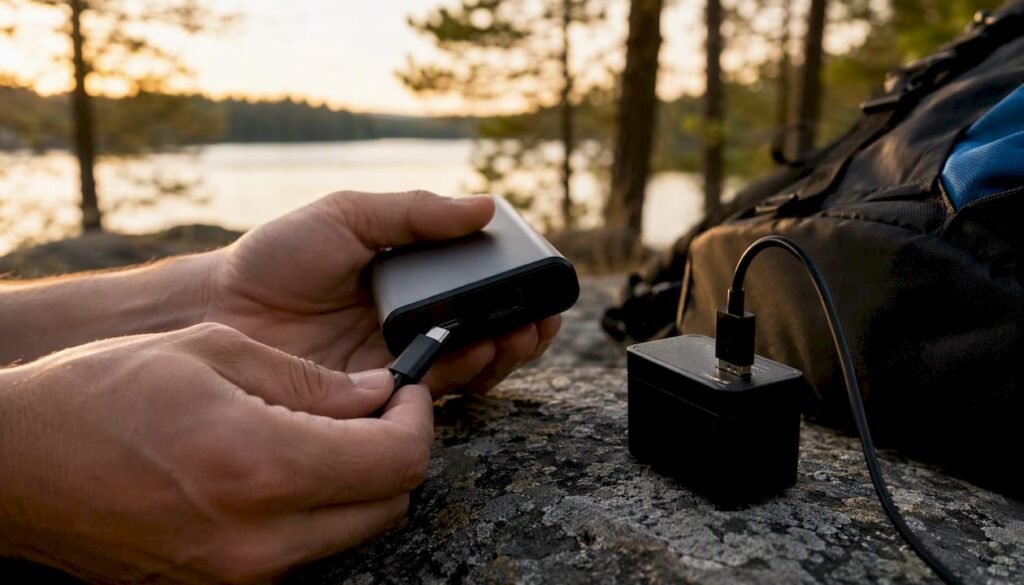
USB-C is the right choice for charging a laptop, transferring files to an external SSD, or connecting a modern phone. Stick with USB-A for keyboards, mice, older flash drives, and any peripheral where speed and wattage don’t matter.
- Charging a laptop: USB-C with USB Power Delivery (PD) is the only practical option. USB-A tops out too low to charge most modern laptops at a useful rate.
- External SSD / fast data transfers: USB-C paired with USB 3.2 Gen2 or USB4 moves a 10 GB file in roughly 2 seconds. The same file over a USB-A 3.0 connection takes 20 seconds or more.
- Legacy peripherals (keyboards, printers, older hubs): USB-A still works fine. No adapter needed, no speed penalty for these low-bandwidth devices.
Quick port check: look for a small lightning bolt (Thunderbolt) or “SS” (SuperSpeed) icon next to the port. On cables, look for a “40Gbps,” “USB4,” or “3.2” label printed on the connector housing or packaging. No label usually means USB 2.0 speeds only.
Key Takeaways
USB-C paired with USB Power Delivery and USB4 is the faster, higher-wattage, and more capable connector for modern devices, while USB-A remains practical for legacy peripherals and broad compatibility during the ongoing transition.
| Point | Details |
|---|---|
| Power delivery requires USB-C | USB-A BC 1.2 caps at 7.5 W; USB-C PD supports up to 100 W standard and 240 W with Extended Power Range. |
| Cable rating limits actual wattage | A 140 W charger with a 60 W cable delivers 60 W; e-marked 5 A cables are required above 60 W. |
| Check specs, not connector shape | Two USB-C ports on the same device can have completely different speed and Alt Mode capabilities. |
| Ifory 100W power bank | Delivers USB-C PD at up to 100 W with USB-A ports included, IP67 waterproofing, and 40,000mAh capacity for multi-device travel charging. |
Table of Contents
- What do USB-A and USB-C actually mean?
- How do the physical designs of USB-A and USB-C differ?
- How do USB-C and USB-A compare for data transfer speeds?
- What are the charging power differences between USB-A and USB-C?
- What video and alternate mode features does USB-C support?
- What can adapters actually do when mixing USB-A and USB-C?
- Why does cable quality matter so much with USB-C?
- When should you use USB-C versus USB-A for specific devices?
- What are the common problems with USB-C adoption?
- Is USB-A being phased out?
- How do you check what a port or cable can actually do?
- The case for a mixed approach during the transition
- Ifory’s 40,000mAh power bank puts USB-C PD to work in the field
- Sources
What do USB-A and USB-C actually mean?
The single biggest source of confusion here is mixing up the connector shape with the USB standard. They are two separate things.
The connector type (Type-A or Type-C) describes the physical plug and port. The standard (USB 2.0, USB 3.2, USB4, Thunderbolt) describes the protocol running through it, which determines speed, power, and features. A USB-C port on a budget phone might run USB 2.0 only. A USB-C port on a high-end laptop might run USB4 at 40 Gbps with DisplayPort Alt Mode and 100 W charging. Same shape, completely different capability.
The connector is the door. The standard is what’s behind it. A reversible USB-C plug does not mean fast speeds — it means a reversible plug. Check the spec sheet, not the shape.
Two common mismatches worth knowing:
- A USB 3.2 Gen2 cable plugged into a USB 2.0 port runs at USB 2.0 speeds. The cable can’t upgrade the port.
- A USB-C port that supports only data will not output video, even with a DisplayPort adapter and a capable cable. The host controller has to support Alternate Mode.
As HowToGeek explains, identical-looking USB-C ports can behave very differently depending on the device’s internal controller. That’s the core thing to internalize before buying any cable or adapter.
How do the physical designs of USB-A and USB-C differ?
USB-A is the rectangular connector most people have used for two decades. It inserts one way only, which means roughly half your attempts go in upside down. The connector is about 12 mm wide and 4.5 mm tall, which is fine for desktop ports but bulky for thin laptops and impossible for modern smartphones.
USB-C is oval, about 8.3 mm wide and 2.5 mm tall, and fully reversible. Either orientation works. That alone removes a small but real daily frustration, especially when plugging in at night or behind a monitor.
A few practical differences worth noting:
- Durability: The USB Type-C System Overview specifies a durability target of approximately 10,000 insertion cycles for Type-C connectors. USB-A connectors have no standardized cycle rating at the same level.
- Device size: The smaller Type-C footprint is why thin laptops, tablets, and phones dropped USB-A entirely. You simply can’t fit a standard Type-A port in a 6 mm chassis.
- Cable symmetry: USB-C cables are the same on both ends (for device-to-device connections), which simplifies cable management. USB-A cables always have a distinct “host” end and a “device” end.
How do USB-C and USB-A compare for data transfer speeds?
Connector type sets a ceiling on what’s possible, but the protocol determines actual speed. Here’s how the standards map out:
| Standard | Connector | Max Speed | 10 GB file transfer (approx.) |
|---|---|---|---|
| USB 2.0 | USB-A or USB-C | 480 Mb/s | ~3 minutes |
| USB 3.2 Gen1 | USB-A or USB-C | 5 Gbps | ~20 seconds |
| USB 3.2 Gen2 | USB-A or USB-C | 10 Gbps | ~10 seconds |
| USB 3.2 Gen2×2 | USB-C only | 20 Gbps | ~5 seconds |
| USB4 Gen 2×2 | USB-C only | 20 Gbps | ~5 seconds |
| USB4 Gen 3×2 / Thunderbolt 4 | USB-C only | 40 Gbps | ~2 seconds |
| USB4 80 Gbps (v2) | USB-C only | 80 Gbps | ~1 second |
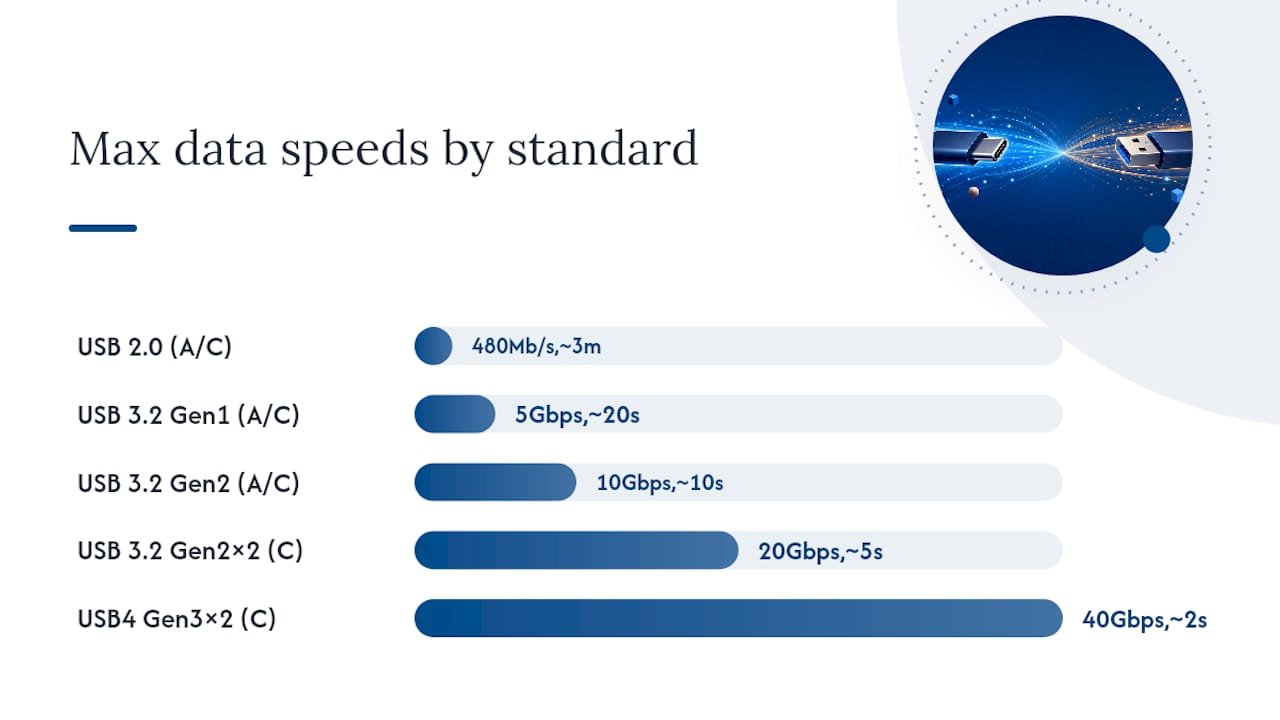
The USB Implementers Forum defines USB4 at up to 40 Gbps in its standard modes, with newer specification updates adding an 80 Gbps mode. USB-A tops out at USB 3.2 Gen2 (10 Gbps) in the best implementations. The 20 Gbps Gen2×2 and anything above it are USB-C exclusive.
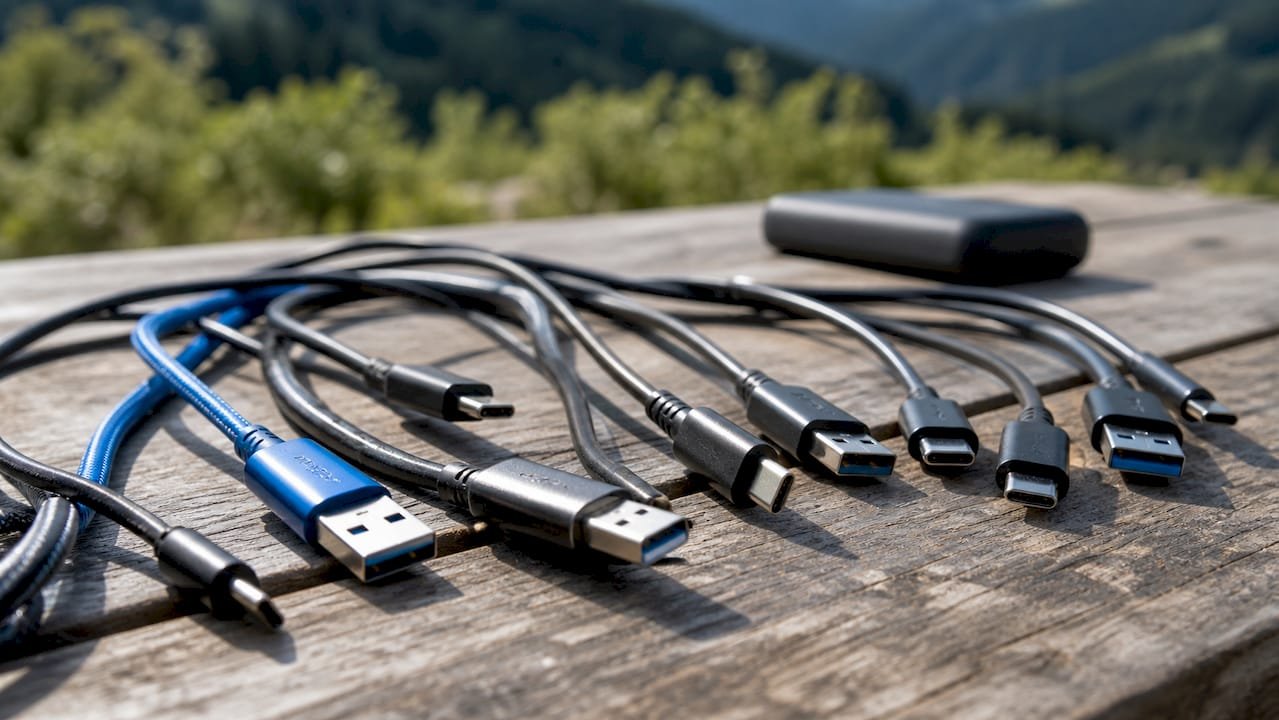
Real-world throughput is almost always lower than the spec ceiling. Four things create bottlenecks: the host controller in your computer, the cable’s rated speed, the device’s own controller, and the port configuration. A 40 Gbps cable plugged into a port that only negotiates USB 3.2 Gen1 runs at 5 Gbps.
Pro Tip: When buying a cable for an external SSD, check the drive’s spec sheet for its rated interface speed, then match the cable to that rating. A cable labeled “USB 3.2 Gen2” or “10Gbps” is the minimum for NVMe-based portable drives. Anything below that leaves performance on the table.
What are the charging power differences between USB-A and USB-C?
USB-A charging has always been limited by the standard it runs on. USB 2.0 defaults to 500 mA at 5 V (2.5 W). The Battery Charging 1.2 specification pushed that to 1.5 A (7.5 W). That’s enough for a phone overnight, but it won’t charge a laptop at all, and it charges a tablet slowly.
USB-C with USB Power Delivery changes the math entirely.
| Charging tier | Typical wattage | Common use case |
|---|---|---|
| USB 2.0 default | 2.5 W | Slow phone top-up |
| USB-A BC 1.2 | 7.5 W | Standard phone charging |
| USB-C default (5 V / 0.5 A) | 4.5 W | Baseline, no PD negotiation |
| USB-C PD (standard) | 18–100 W | Phones, tablets, laptops |
| USB-C PD (EPR, extended power range) | Up to 240 W | High-performance laptops, workstations |
The USB Type-C System Overview confirms that Type-C supports up to 100 W in standard PD configurations, with the Extended Power Range revision pushing that ceiling to 240 W. The key mechanism is negotiation: as Texas Instruments explains, the charger and device communicate to agree on a safe voltage and current before any power flows. A 100 W charger connected to a phone that only needs 18 W delivers exactly 18 W. Nothing is forced.
Pro Tip: Cable rating limits the actual wattage delivered, not just the charger. A 140 W charger paired with a cable rated for 60 W delivers 60 W maximum. For anything above 60 W, you need a cable with an e-marker chip that identifies it as a 5 A cable. Check the cable spec, not just the charger.
What video and alternate mode features does USB-C support?
USB-C can carry video signals through a feature called Alternate Mode, where the connector’s physical lanes are repurposed to carry DisplayPort or other video protocols instead of (or alongside) USB data. This is how a single USB-C cable can connect a laptop to a 4K monitor, a docking station, and a charger simultaneously.
The most common implementations:
- DisplayPort Alt Mode: Carries a native DisplayPort signal over USB-C. Supports up to 8K resolution depending on the DisplayPort version negotiated. Requires both the host and the display (or adapter) to support it.
- Thunderbolt video: Thunderbolt 3 and 4 ports (always USB-C shaped) carry DisplayPort 1.4 natively, enabling daisy-chaining of monitors.
- HDMI via adapter: A USB-C-to-HDMI adapter works when the host supports DisplayPort Alt Mode. The adapter converts the DP signal to HDMI. No Alt Mode support on the host means no video, regardless of the adapter.
USB-A supports none of this. There is no Alternate Mode for Type-A. Any video capability from a USB-A port (like a USB-A-to-HDMI adapter) requires a separate graphics chip inside the adapter, which adds cost, latency, and compatibility complexity.
One critical point: a USB-C port labeled “data only” or found on a budget device often lacks Alt Mode entirely. The port looks identical to a Thunderbolt port. Check the device spec sheet for explicit “DisplayPort Alt Mode” or “Thunderbolt” support before buying a USB-C monitor or dock.
What can adapters actually do when mixing USB-A and USB-C?
Adapters handle the physical mismatch between connector shapes. What they cannot do is add protocol features the host hardware doesn’t have.
A passive adapter (the common USB-A-to-USB-C dongle) is purely a shape converter. It lets a USB-A cable plug into a USB-C port, or vice versa. The protocol running through it is still limited by the weakest link in the chain, usually the USB-A host.
What works with a passive adapter:
- Charging a device at USB-A rates (up to BC 1.2 levels)
- Basic data transfer at USB-A speeds (up to USB 3.2 Gen2 if the host supports it)
- Connecting USB-A peripherals (keyboards, mice, flash drives) to a USB-C-only laptop
What won’t work, regardless of adapter quality:
- DisplayPort Alt Mode or Thunderbolt video through a USB-A host
- USB4 speeds from a USB-A port
- USB Power Delivery at high wattages from a USB-A charger
Active adapters exist for specific protocol translation tasks (like USB-A to Ethernet, or USB-A to DisplayPort with an internal chip), but these are specialized and add their own latency and compatibility constraints. The core rule: an adapter changes the shape of the connection, not the capability of the host.
Why does cable quality matter so much with USB-C?
With USB-A, a cable either works or it doesn’t. The range of failure modes is narrow. USB-C cables carry a much wider range of signals and power levels, which means the wrong cable creates problems that are harder to diagnose.
Key distinctions:
- Charging-only cables: Many USB-C cables omit the data conductors entirely to cut manufacturing cost. They charge a device but transfer no data and carry no video. CNET notes that e-marker chips and properly rated conductors are required for higher current and higher data rates.
- 3 A vs 5 A cables: Standard USB-C cables handle up to 3 A (60 W at 20 V). For anything above 60 W, the cable must contain an e-marker chip that identifies it as a 5 A cable. Without the chip, the charger won’t negotiate above 60 W.
- Active vs passive cables: Passive cables work for most USB 3.2 and shorter USB4 runs. Active cables include signal retimers for longer runs or the 80 Gbps USB4 mode, where signal integrity degrades without amplification.
Safety warnings worth taking seriously:
- Avoid cables with no printed spec or brand. Counterfeit e-marker chips exist and can misrepresent cable capability to chargers.
- A cable that gets warm during charging is a warning sign. Properly rated cables at their rated current stay cool.
- Buy cables certified by the USB Implementers Forum or from brands with documented compliance. The USB-IF maintains a certified products list.
- Never use a charging-only cable with a device that expects data. It won’t damage anything, but it will confuse you when the device doesn’t appear on your computer.
When should you use USB-C versus USB-A for specific devices?
The practical answer depends on what you’re connecting and what you need from the connection.
Prefer USB-C for:
- Modern smartphones (iPhone 15 and later, most Android flagships since 2022)
- Laptops, especially for charging via a USB-C PD-capable power bank
- External SSDs where transfer speed matters
- Docking stations and multi-monitor setups
- Travel chargers where one cable handles phone, tablet, and laptop
USB-A remains perfectly fine for:
- Keyboards, mice, and game controllers
- Older USB flash drives and card readers
- Printers and scanners with USB-A cables
- USB hubs connecting legacy accessories to a modern laptop
PCMag confirms that USB-C is broadly adopted across device classes but that legacy USB-A support persists across a wide range of peripherals. The practical advice from most reviewers: adopt USB-C for chargers and high-speed storage, and keep a couple of quality USB-C-to-USB-A adapters for the legacy gear you’re not ready to replace.
For travel specifically, a USB-C-only power bank simplifies your kit. One cable type charges everything modern, and a single adapter covers the exceptions.
What are the common problems with USB-C adoption?
USB-C’s flexibility is also its biggest source of frustration. Because the same connector can do so many different things, it’s easy to buy the wrong cable or make wrong assumptions about a port.
Common pitfalls:
- Inconsistent port capabilities: Two USB-C ports on the same laptop may have different feature sets. One might support Thunderbolt and PD; the other might be data-only at USB 3.2 speeds. The spec sheet is the only reliable source.
- Vague cable labeling: “USB-C cable” tells you nothing about speed or current rating. A cable sold as “fast charging” might be a 3 A cable that caps at 60 W, or it might be a 5 A e-marked cable rated for 100 W. The difference matters.
- Counterfeit or uncertified cables: Cheap cables from unknown sources sometimes misrepresent their e-marker data, which can cause chargers to negotiate incorrectly.
- Dock and monitor compatibility surprises: Not every USB-C dock works with every laptop. Thunderbolt docks require a Thunderbolt host. A USB 3.2 dock on a Thunderbolt port works, but a Thunderbolt dock on a USB 3.2 port may not.
Red flags when buying cables or adapters: no listed wattage, no listed data speed, no brand name, no certification mark. Mitigation is straightforward: check the device spec sheet before buying, and spend a few extra dollars on a cable from a brand that lists its e-marker status and current rating explicitly.
Is USB-A being phased out?
USB-A is not disappearing next year, but the direction is clear. USB-C is the connector the industry has standardized around for new product categories. The European Union’s Common Charger Directive, which took effect for phones and tablets in late 2024, mandates USB-C as the charging port for those device classes sold in the EU. Laptops follow in 2026 under the same regulation.
What this means practically:
- New phones, tablets, and laptops will ship with USB-C as the primary or only port.
- Desktop computers, monitors, and peripherals will carry USB-A for several more years, given longer product cycles.
- USB-A flash drives, hubs, and accessories will remain available and functional for the foreseeable future.
- The transition is category-by-category, not a single cutover date.
Planning your refresh:
- Replace chargers with USB-C PD models first. That’s the highest-impact change.
- Keep USB-A ports or a hub for legacy peripherals until you replace them naturally.
- Buy USB-C-native accessories when replacing keyboards, mice, or hubs.
- A single quality USB-C-to-USB-A adapter covers most edge cases during the transition.
How do you check what a port or cable can actually do?
Spec sheets and port icons are the starting point. Here’s a repeatable process:
- Check the device spec sheet. Look for explicit statements: “USB4 40 Gbps,” “Thunderbolt 4,” “DisplayPort Alt Mode,” “USB Power Delivery 100 W.” Vague labels like “USB-C port” tell you nothing beyond the connector shape.
- Look for port icons. A lightning bolt next to a USB-C port indicates Thunderbolt. A “DP” symbol indicates DisplayPort Alt Mode. “SS” (SuperSpeed) indicates USB 3.x. No icon usually means USB 2.0 only.
- Test with a known-good cable and device. Connect a USB4-certified cable between a documented USB4 host and a USB4 device. If speeds match the spec, the chain is working. If they don’t, the cable or a port configuration is the bottleneck.
- Use a USB-C port tester. Inexpensive hardware testers (available for under $20 from electronics retailers) read the port’s advertised PD wattage, data speed, and Alt Mode support. Useful when documentation is vague or missing.
- Use software tools. On Windows, USB Device Tree Viewer shows controller details and negotiated speeds. On macOS, System Information under the USB section lists connected device speeds and power negotiation.
Record what you find: advertised speed, PD wattage, and Alt Mode support. That record saves time when troubleshooting a dock or monitor that isn’t working as expected.
Pro Tip: When validating a full USB4 or Thunderbolt chain, swap components one at a time. Replace the cable first (it’s the cheapest variable), then test the device on a different port, then test on a different host. Isolating the weak link this way is faster than guessing.
The case for a mixed approach during the transition
The USB-C vs USB-A debate gets framed as a binary, but the smarter position is a deliberate hybrid. USB-C for anything that benefits from speed or high-watt charging. USB-A for legacy gear that works fine and doesn’t need replacing yet.
The mistake most people make is assuming a USB-C port is automatically better. A USB-C port running USB 2.0 is slower than a USB-A port running USB 3.2 Gen2. The connector shape is not the spec. Read the label, check the sheet, and match the cable to the actual capability of the port.
Ifory’s 40,000mAh power bank puts USB-C PD to work in the field
Everything covered in this guide about USB-C charging speed and Power Delivery applies directly to what you carry in your pack. The Ifory 40,000mAh 100W power bank delivers up to 100 W over USB-C PD, which means it charges a laptop at full speed, not just trickle-charges it. It also includes USB-A ports for legacy devices, so you’re not forced to choose between connector types on a trail or at a campsite.

The IP67 waterproof rating and anti-drop build mean it handles the conditions where you actually need a power bank most. An integrated 500-lumen flashlight and real-time LED display round out the kit. If you want a fast-charging power bank that actually reflects the USB-C PD specs this article describes, the Ifory 100W model is worth a look. Browse the full lineup at the Ifory power bank store.
Sources
These are the primary references for the specifications and claims throughout this guide:
- HowToGeek — USB-C explainer
- CNET — What Is USB-C? (explainer)
- PCMag — What Is USB-C?
- Texas Instruments